Examine interrogator transmissions
1. Open the tool
You can reach the uplink module via the menu.
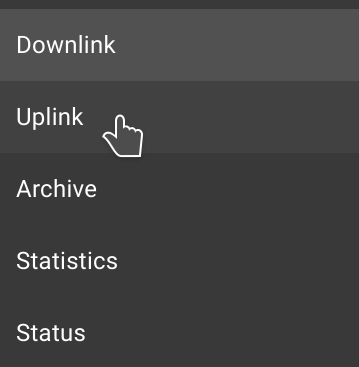
Click the menu button in the upper left corner and select Uplink.
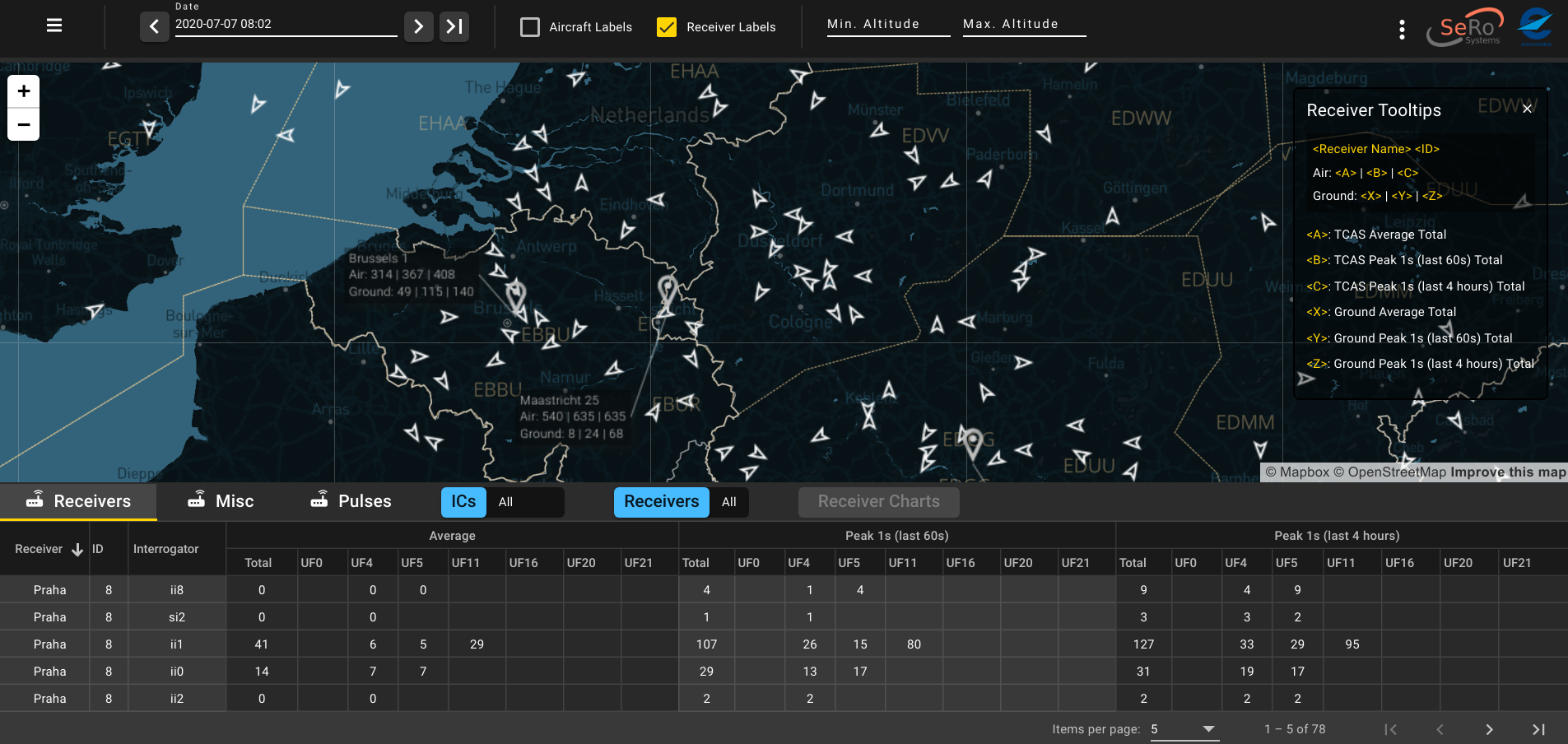
The uplink module will show up.
2. Select a time
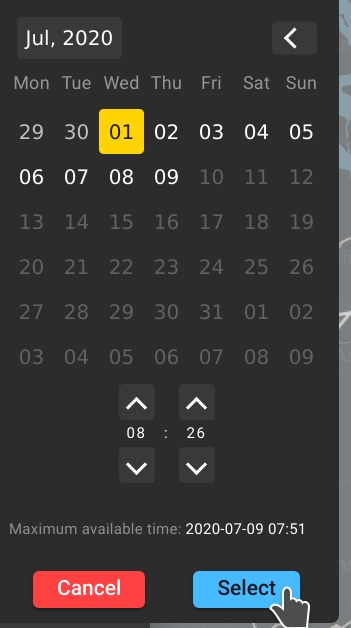
To go to the time of interest, click on the date in the top menu bar. A time picker shows up where you can select date and time and click Select to retrieve data.
3. Filter for interrogator code
You can filter for an interrogator code of interest by clicking on the IC button below the map.
A dialog shows up where you can select one or multiple interrogator codes to filter for.
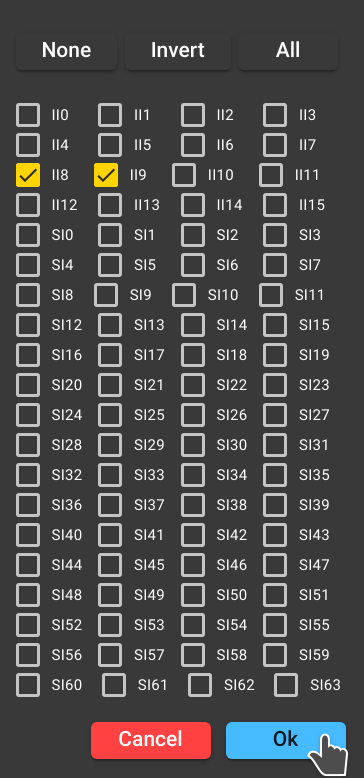
Note the buttons in the upper part of the dialog which allow to quickly (de-)select all interrogators.
Click the Ok button to retrieve data.
4. Filter by receiver
To examine a particular interrogator, select a receiver near to the interrogator's location. For this purpose, click on the Receivers button below the map.
A dialog shows up where you can select one or multiple receivers.
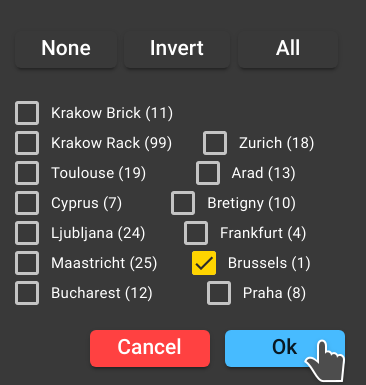
Note that there can be multiple receivers with the same name. Internally, they have a different ID. This situation can be caused by a receiver replacement. The dialog automatically selects all receivers with the same name if you choose one.
5. Receiver charts
You can inspect message rates over time for particular receivers. For this purpose, either click on a receiver marker in the map or click the receiver's name to investigate in the table on the bottom.
Open the receiver charts dialog by clicking the Receiver Charts button below the map.

There are four different charts.
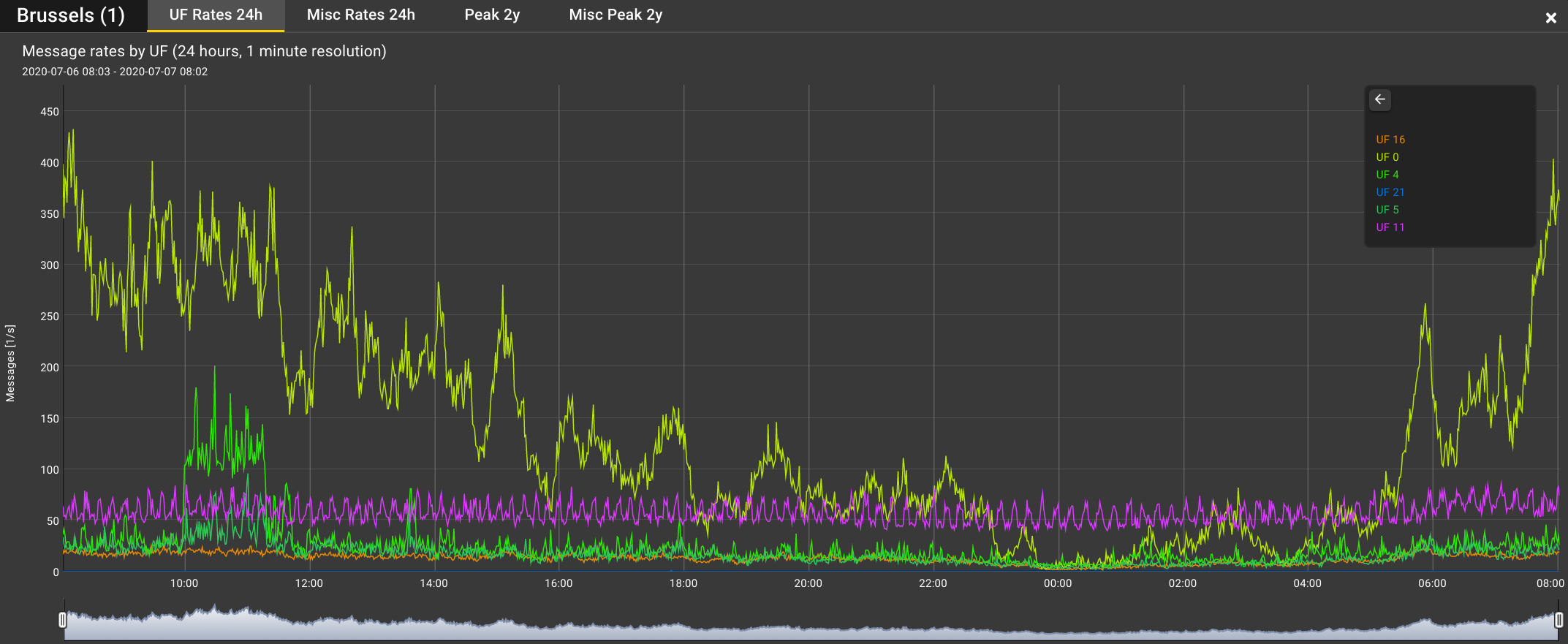
Uplink formats
The chart shows the peak 1s message rates for the last 24 hours with a resolution of 1 minute. There is a line for each uplink format.
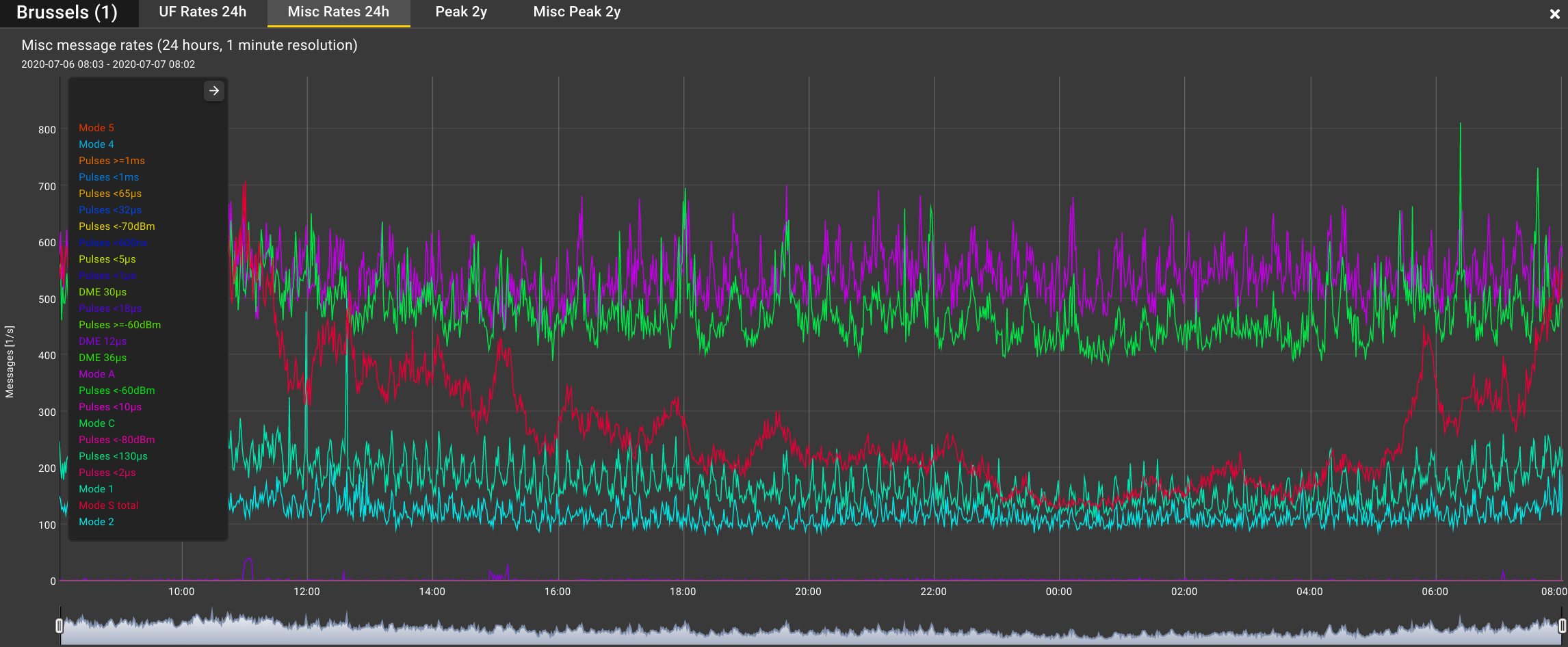
Misc rates
Miscellaneous message rates for DME, isolated pulses and other Modes than Mode S are presented in this chart. It shows peak 1s rates of the last 24 hours with a resolution of 1 minute.
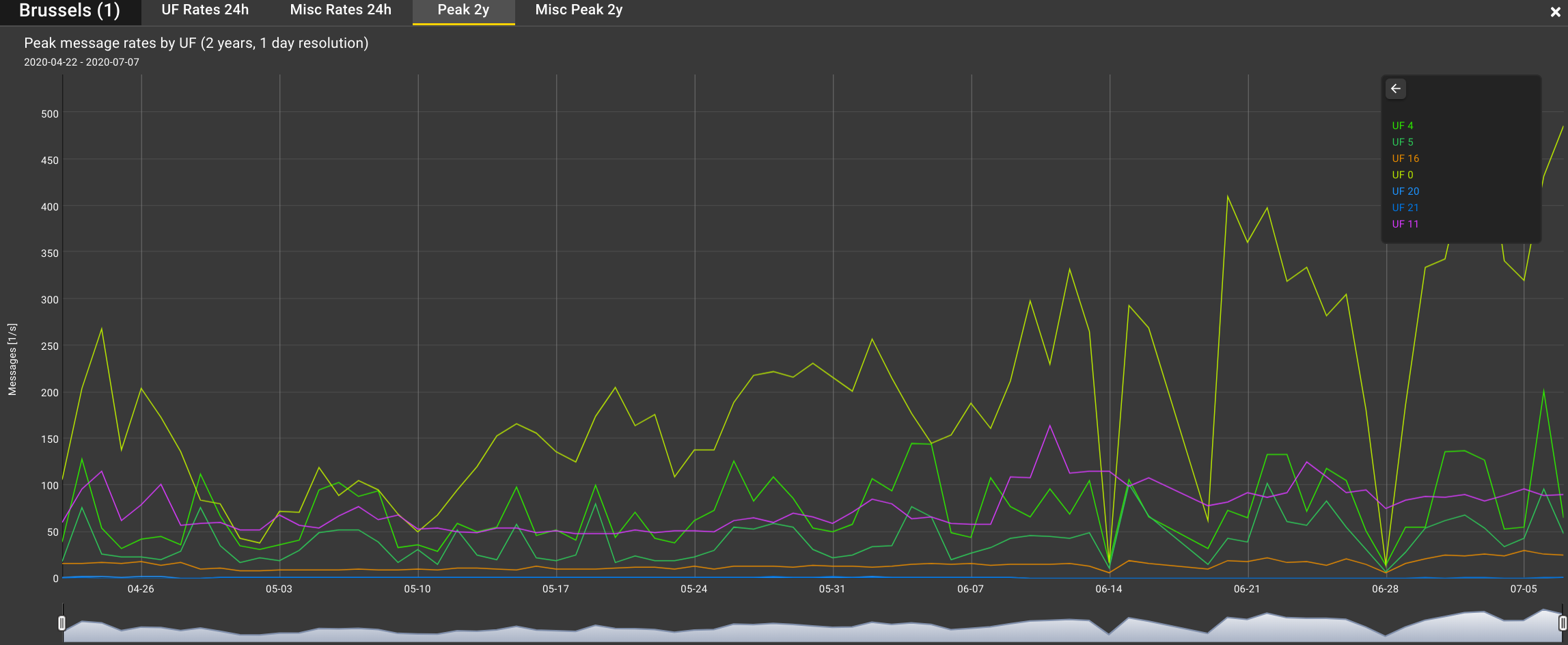
Uplink formats peak day
The Peak 2y charts shows the peak 1s message rate by day for each uplink format over the last 2 years.
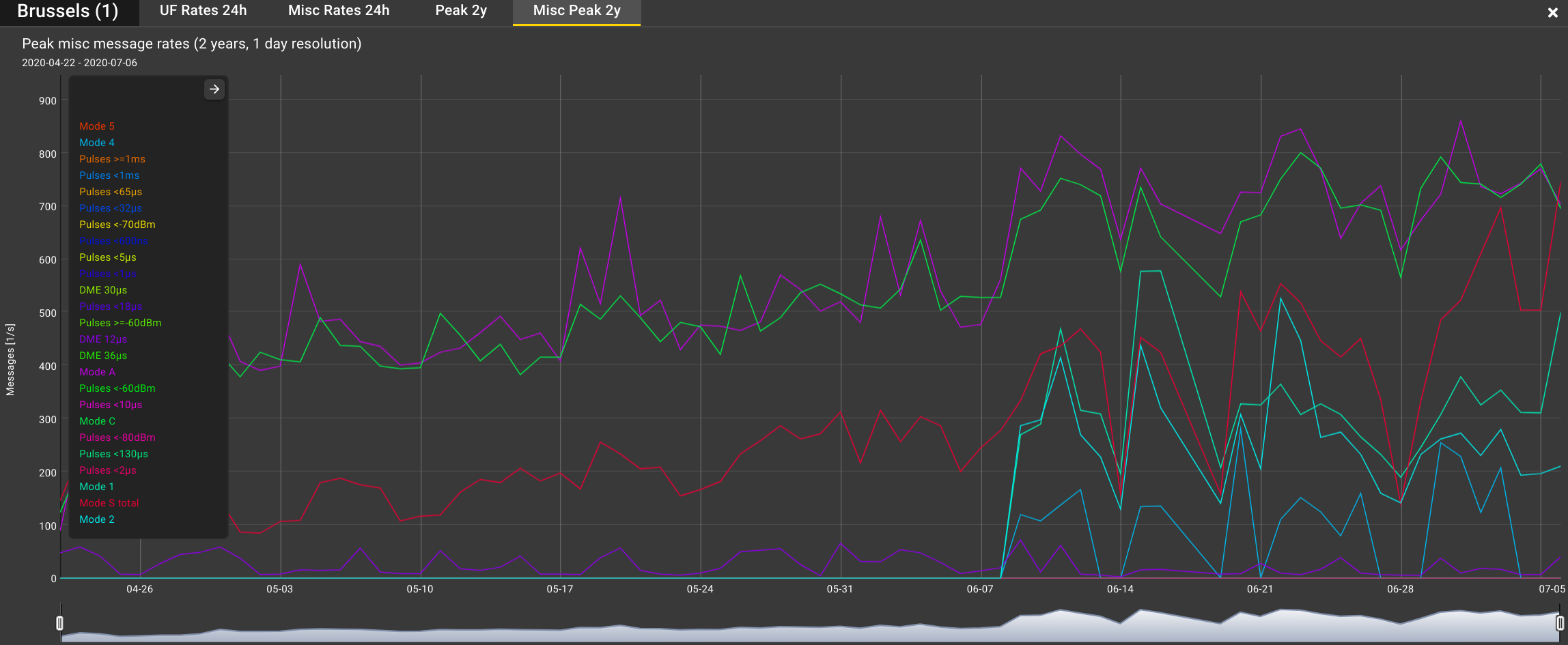
Misc rates peak day
The Misc Peak 2y chart depicts peak 1s message rates for DME, isolated pulses and other Modes than Mode S. The resolution is 1 day and it presents data for the last two years.
6. Download raw data
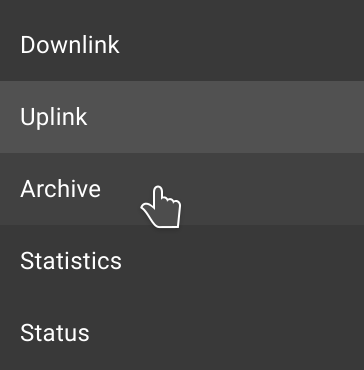
In order to retrieve raw messages from the Mode S uplink, change to the Archive module by opening the menu on the top left.
Adjust the start and end time for which to retrieve raw data, receivers and interrogators of interest and uplink formats.
Note
The system processes large amounts of data. If you select time ranges of several hours you will easily end up with files of multiple Gigabytes. Thus, data export is limited to 1 million messages. Please don't select time ranges of more than a few minutes without tight filters.
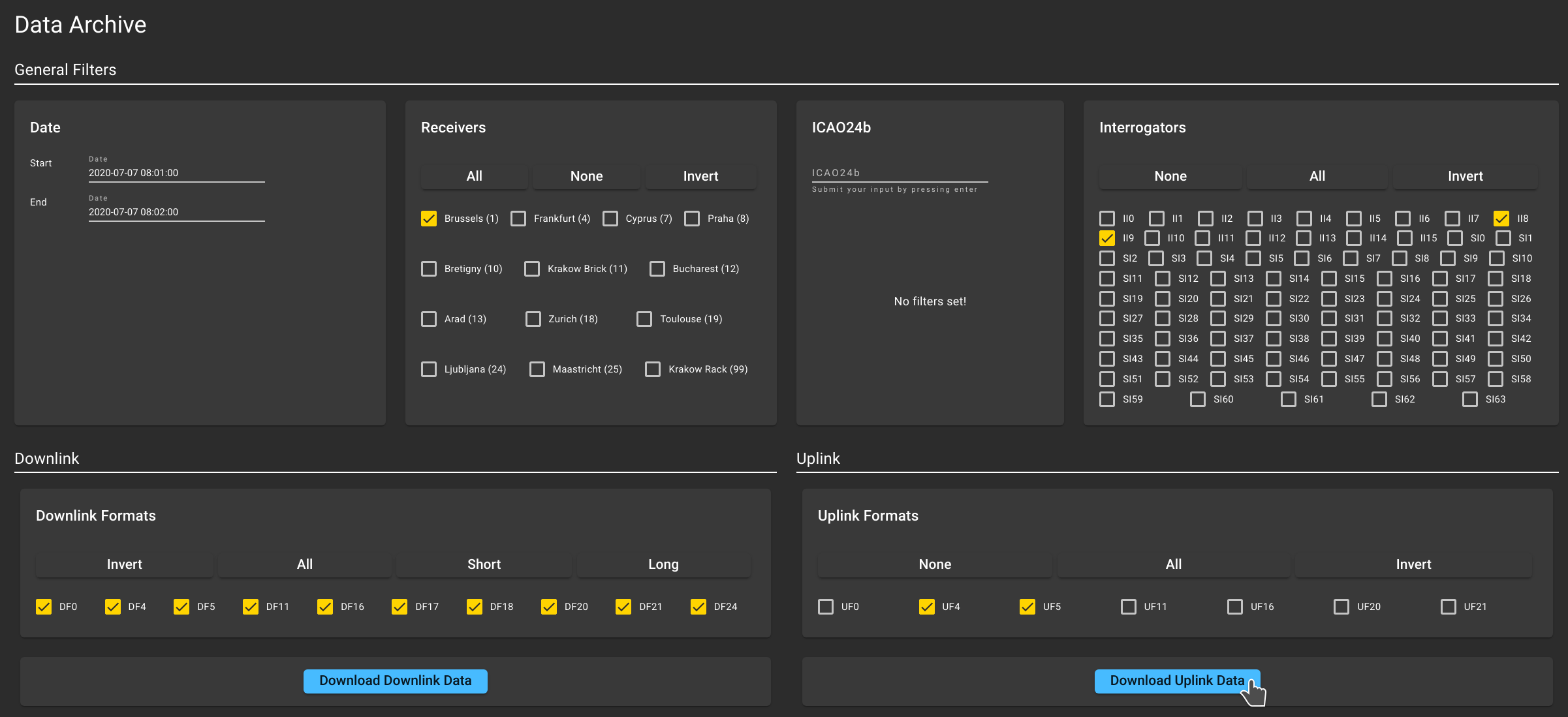
Finally, click Download Uplink Data to start CSV export.
The web browser ask for a location to store the file. It is a compressed CSV file with the following columns:
- Time UTC - ISO8601 UTC timestamp
- Timestamp - Unix time in seconds since epoch (before decimal dot) and nanoseconds after the decimal dot. The timestamp corresponds to the first receiver in the Receivers list.
- Message - the raw message in hexadecimal representation
- ICAO24b - 24 bit transponder address
- UF - uplink format
- IC - interrogator code
- Receivers - a list of receiver IDs that received the underlying message
- LOS/LSS - state of the LOS/LSS bits (where applicable)
- Lockout-Override - state of the lock-out override bit (only for UF11)
- Probability of reply - only for UF11, values per ICAO Annex 10, Vol IV, 3.1.2.5.2.1.1
- BDS - the BDS number
- Signal strength - measured in dBm by the first receiver in the Receivers list
- Frequency offset - offset from the 1090MHz frequency measured in kHz by the first receiver in the Receivers list
- P5 Strength - strength of P5 (side-lobe suppression) pulse in dB above signal level by the first receiver in the Receivers list
Example CSV output:
time_utc,timestamp,message,icao24b,uf,ic,receivers,los_lss,lo_override,reply_prob,bds,signal_strength,frequency_offset,p5_strength
2022-09-06T07:35:17.932Z,1662449717.932961141,58a40000d26a8a,ffffff,11,si52,"39",,false,1,,-87.5,,14
2022-09-06T07:35:17.933Z,1662449717.933031661,208f3700aeff80,407aaf,4,ii3,"10",false,,,17,-70.5,,11
2022-09-06T07:35:17.933Z,1662449717.933043255,58480000ae1950,ffffff,11,ii9,"47",,false,0,,-58.0,,12
2022-09-06T07:35:17.933Z,1662449717.933127535,000400004f577e,4406fc,0,,"8",,,,,-89.0,,
2022-09-06T07:35:17.933Z,1662449717.933164681,20a93040e649ff,4ca2cb,4,ii3,"10",true,,,50,-70.5,,11
2022-09-06T07:35:17.933Z,1662449717.933186950,00040000454904,4b17e1,0,,"65",,,,,-73.5,,
2022-09-06T07:35:17.933Z,1662449717.933213873,00000000cbf94d,ae0378,0,,"19",,,,,-83.5,,
2022-09-06T07:35:17.933Z,1662449717.933288089,000400001b9df9,3aabc8,0,,"33",,,,,-79.0,,
Note
You will be able to download data for aircraft and interrogators seen by your own receivers or by public receivers.